

Tracking who showed up today should not feel like a guessing game. When employees are missing and no one knows, productivity drops fast. That gap costs businesses real time and real money.
This is where the absent report in attendance management system becomes your best friend. It gives HR teams, admin staff, and managers a clear view of who is absent every single day.
In this guide, you will learn two powerful ways to check absences. The daily absent report helps you see who is missing right now. The absent summary report shows patterns across a date range.
By the end, you will know how to open reports, set filters, pick dates, and get the data you need. Fast. No confusion. No stress.
What the Absent Report Helps You to Track
The absent report is more than just a missing list. It is a decision-making tool. It shows which employees did not check in on a given day. It also reveals absence patterns over time.
Without a proper attendance absence report, teams waste time chasing information manually. Managers have to call supervisors. HR has to dig through spreadsheets. That is painful and slow.
With the right absence report tool, everything becomes clear in seconds. You can spot frequent absentees. You can catch unusual dips in attendance. You can act before small problems grow into big ones.
Here is what a solid absent report helps you track:
- Missing employees on any given working day
- Absence trends across weeks or months
- Department-wise attendance gaps at a glance
- Daily headcount accuracy for employee absence tracking
- Summary data for HR reporting and performance reviews
When you have this information ready, you stop reacting and start planning. Your team runs better. Your operations stay smooth.
1. Daily Absent Report for Single-Day Checks
The daily absent report is built for speed. It shows you who is absent on one specific day. No extra noise. Just the data you need right now.
This is perfect for morning check-ins. A manager opens the report, selects today’s date, and sees who is missing within seconds. The team can then plan workload coverage accordingly.
It is also great for same-day payroll verification. If someone was marked absent but actually showed up, you catch the error fast. That keeps your records clean and your employees happy.
Best use cases for the daily absent report:
- Morning attendance checks before the workday begins
- Verifying same-day absences for payroll processing
- Monitoring attendance in real time for shift-based roles
2. Absent Summary Report for Date Range Analysis
The absent summary report takes a wider view. It lets you review absences across multiple days. You set a start date and an end date. The report fills in everything in between.
This is your go-to tool for trend analysis. Want to know who missed the most days last month? Which department had the highest absenteeism last quarter? The summary report answers both.
HR teams love this for performance reviews and compliance reporting. Managers use it to identify employees who may need support. Leadership uses it to measure workforce reliability across teams.
Best use cases for the absent summary report:
- Weekly or monthly HR absence reviews
- Identifying high-absence employees for wellness check-ins
- Generating compliance and audit-ready attendance records
- Spotting seasonal absence patterns by department
Key Filters That Make Absence Reports More Useful
Raw data without filters is overwhelming. The attendance absence report becomes truly powerful when you use filters correctly. Filters narrow down the data so you see exactly what you need.
Date-based filtering is the most commonly used option. You can choose a single date for a daily view. You can also choose a start and end date for a range view. Both options save you serious time.
Filtering also reduces human error. When you narrow the scope of your data, you are less likely to misread results or make decisions based on the wrong time period. Clean filters mean clean decisions.
1. Using a Custom Date for Daily Absence Review
The custom date filter lets you pick one exact day. This is ideal when you are reviewing a specific date after the fact. Maybe you need to verify attendance for last Monday. Just pick that date and pull the report.
The calendar selector makes it simple. Click, choose, done. Your daily absent report updates instantly to reflect absences on that chosen day.
This feature is especially helpful for managers who review attendance retroactively. It removes the need to scroll through long logs or search manually through records.
2. Using a Custom Date Range for Summary Reporting
The date range filter is where the absent summary report really shines. You choose a start date and an end date. The system pulls all absence data within that window.
Want to see absences from October 24 to October 26? Select those two dates and apply. Your report will show a clean breakdown of absences across all three days.
This filter is a time-saver for monthly reporting cycles. Instead of building reports by hand, you set the range once and let the system do the heavy lifting. Simple, accurate, and fast.
Step-by-Step Tutorial to Use Absent Report
Ready to use the absent report in attendance management system? Follow these steps and you will be done in under two minutes. No technical skills needed.
Step 1: Open the Reports Tab
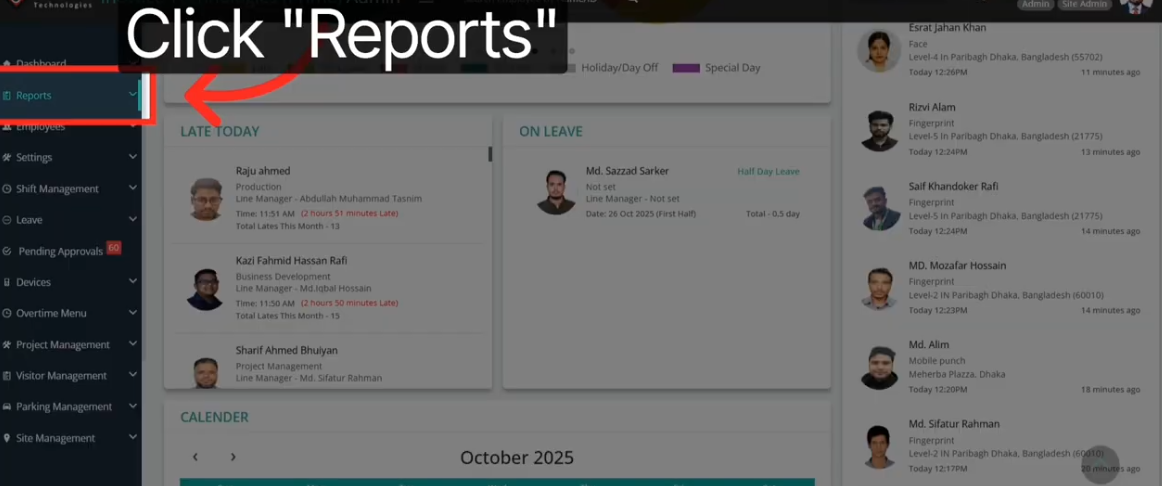
Start at the main dashboard of your attendance management system. Look for the Reports section in the main navigation menu. Click it to open the full reporting area.
The Reports tab is usually on the left sidebar or in the top navigation bar. It is labeled clearly. Once you click it, you will see all available report types.
Step 2: Select Absent Report

Inside the Reports section, look for the Absent Report option. It may be listed alongside other report types like Late Report or Overtime Report. Click on it to open the absence reporting tools.
This takes you to the main Absent Report menu. Here you will see the two core options: Daily Absent Report and Absent Summary Report.
Step 3: Open Daily Absent Report
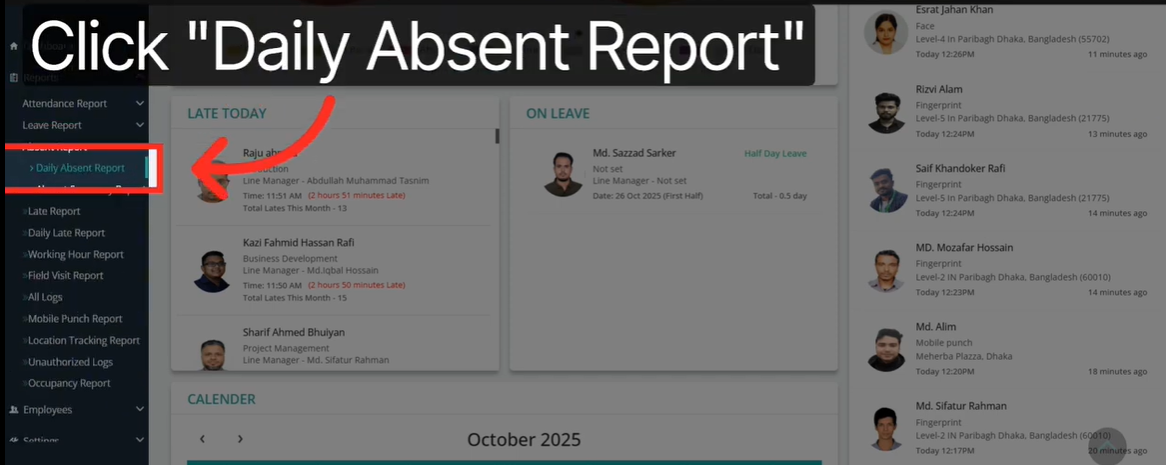
Choose the Daily Absent Report to check absences for one specific day. This is your first option in the absent report menu. Click on it to open the daily absence view.
The system will load a list view of employees. By default, it may show today’s date. You can adjust this using the filter options.
Step 4: Use the Filter Options

Look for a filter button or filter icon on the report page. Click it to open the filter panel. This is where you refine the data for your daily absent report.
The filter panel gives you control over what you see. You can narrow results by date, department, or other available fields depending on your system setup.
Step 5: Select a Custom Date

In the filter panel, locate the date selector. Click on the calendar icon and pick the specific date you want to review. For example, select October 24 to see all absences on that day.
Once you choose the date, hit Apply or Confirm. Your daily absent report will refresh and show only absences for that selected day. Simple and precise.
Step 6: Open Absent Summary Report
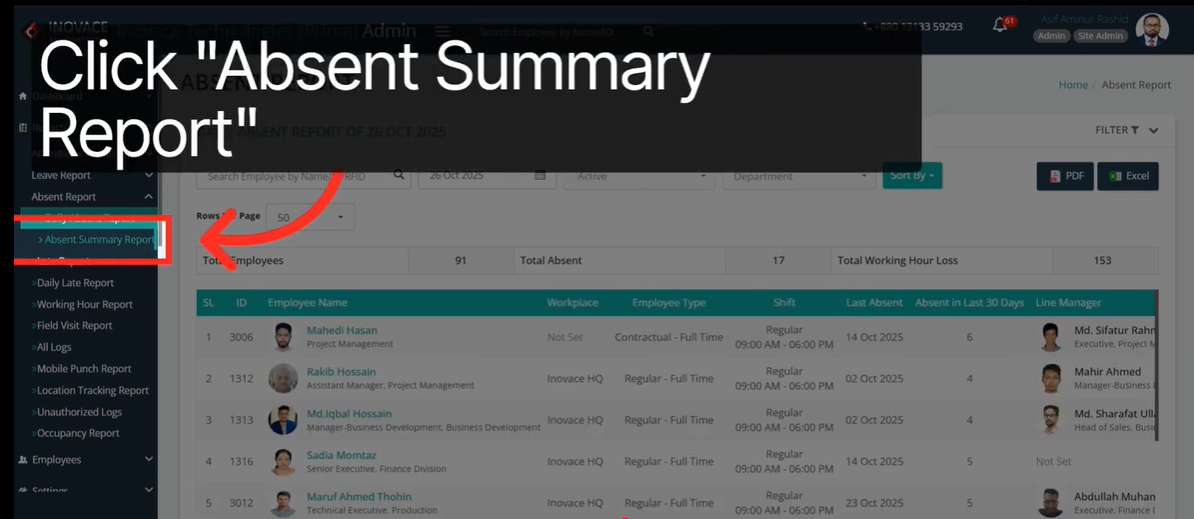
Go back to the main Absent Report menu. This time, choose the Absent Summary Report option. This will open the summary view for multi-day employee absence tracking.
The interface will look slightly different from the daily report. You will see fields for both a start date and an end date. This is where the broader analysis happens.
Step 7: Choose the Start Date
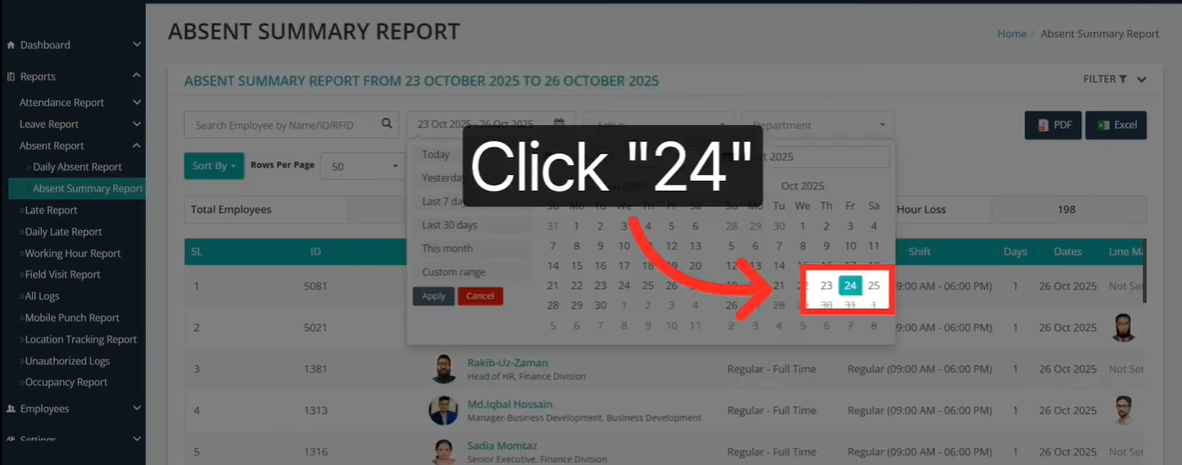
In the date range filter, click on the start date field. A calendar will appear. Select the beginning of your desired period. For example, choose October 24 as your start date.
The start date tells the system where your absence review window begins. Make sure you select the correct date before moving on to the end date.
Step 8: Choose the End Date

Now click on the end date field. Select the last day in your review period. For example, choose October 26 as your end date.
Your date range is now set from October 24 to October 26. The absent summary report will cover all absence data across those three days.
Step 9: Click Apply
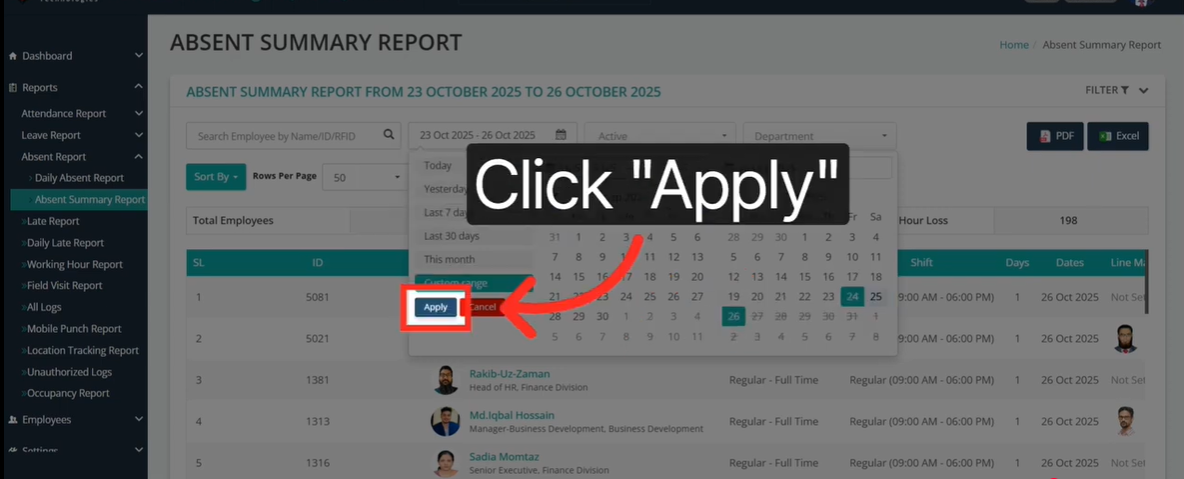
With both dates selected, click the Apply button. This triggers the system to generate your absent summary report for the chosen date range.
The report will load within a few seconds. You will see a breakdown of absences per day, per employee, or per department. The layout depends on your system’s design.
Step 10: Refine with the Filter Button
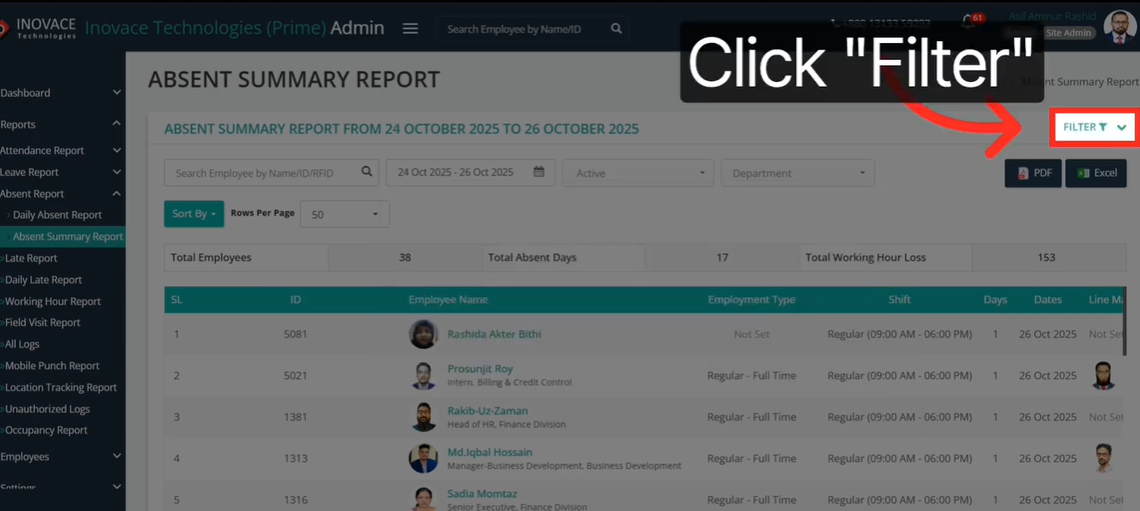
Want to dig deeper? Use the filter button again to narrow the summary results further. You can filter by team, role, or location if those options are available in your system.
This extra step helps when you are looking at a large workforce. Filtering by department, for example, gives team leads a focused view of their own group’s absence trends.
Step 11: Return to the Main Absent Report Menu
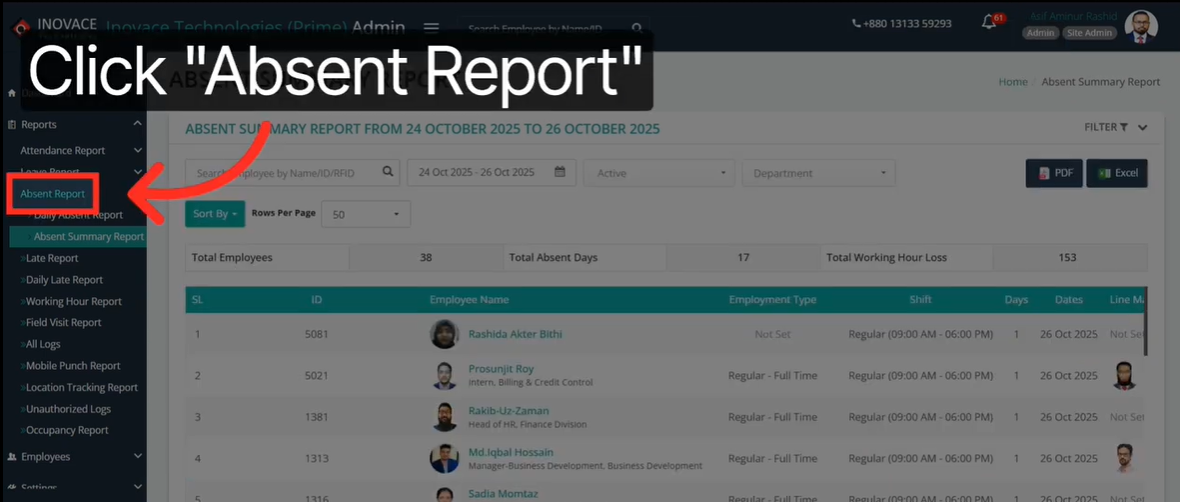
Once you are done reviewing, navigate back to the main Absent Report section. This resets the view and prepares you for your next report run.
You can switch between the daily absent report and the absent summary report any time. Both are always just a few clicks away from the main menu.
Conclusion
Managing absences does not have to be a headache. The absent report in attendance management system gives you everything you need. It is clear, fast, and built for real-world use.
The daily absent report handles your same-day checks. The absent summary report takes care of your broader employee absence tracking needs. Together, they give your team full visibility.
The process is straightforward. Open the Reports tab. Choose your report type. Set your date or date range. Apply your filters. Review the results. Done.
With these tools in your workflow, HR teams save hours every week. Managers make better decisions. And attendance stays under control. Start using your attendance absence report today. Your team will thank you for it.
FAQs
1. What is an absent report in an attendance management system?
An absent report displays a clear list of employees who missed work on a specific day or date range. It pulls data directly from attendance records, helping HR and managers instantly identify absences without manually checking registers or spreadsheets.
2. What is the difference between a daily absent report and an absent summary report?
A daily absent report covers one specific date for quick day-to-day monitoring. An absent summary report spans a custom date range weekly, monthly, or quarterly making it ideal for identifying recurring patterns and preparing periodic HR reviews.
3. How does employee absence tracking help managers?
It gives managers real-time visibility into attendance, helps identify frequent absentees early, and simplifies workload planning by allowing better backup arrangements all without chasing data manually.
4. Can I filter my attendance absence report by department?
Yes. You can filter results by date, department, job role, or individual employee, making reports more focused and relevant for both department heads and HR managers.
5. How often should HR teams review the absent summary report?
Weekly reviews help catch short-term spikes, while monthly reviews reveal longer-term trends. Consistent, scheduled reviews ensure absence issues are addressed before they impact team productivity.