


The HR Problem Nobody Talks About
Picture this. You just hired 50 new employees. Now you need to add each one manually. One profile. One click. One mistake at a time.
That is not an HR process. That is a punishment.
Manual data entry is slow. It is error-prone. And it gets worse the faster your company grows. One missed field or one wrong ID number can cause a chain of sync issues down the line.
Here is the good news. Bulk Employee Management in Tipsoi was built to fix exactly this. It takes a process that used to take hours and turns it into a simple 5-step workflow. The team at Inovace Technologies even showed it can be done in about 32 seconds flat.
This guide will walk you through the entire process. Step by step. No fluff. No confusion. Just a clear path from chaos to control.
By the end, you will know exactly how to use Tipsoi bulk employee upload to save time, cut errors, and make your HR team feel like superstars.
Why Use Bulk Management?
Before we dive into the steps, let us talk about why this matters. Understanding the “why” makes the “how” a lot easier.
1. Stop Managing People One by One
Most HR tools force you to add employees one at a time. You fill out a form. You hit save. You do it again. And again. And again.
This is fine when you have five employees. It becomes a nightmare when you have 500. Tipsoi bulk employee management replaces this repetitive loop with a single upload. You handle an entire department in one go.
That shift alone saves hours every week. And it gives your HR team their time back for work that actually matters.
2. Protect Your Data Quality
Here is something most people overlook. Manual data entry does not just waste time. It also introduces errors.
A wrong email. A duplicate ID. A misspelled name. These small mistakes cause big problems later. Think about payroll mismatches, failed logins, or attendance records linked to the wrong person.
Bulk employee data upload in Tipsoi solves this by using a standardized template. Everyone goes into the system using the same format. That means fewer errors, cleaner data, and fewer late-night panic fixes.
3. Build a System That Grows With You
Your hiring goals for next year are probably bigger than they were this year. That is a good thing. But your HR process needs to keep up.
Tipsoi HR software is designed to scale with you. Whether you are adding 5 employees or 500, the bulk management workflow stays the same. Same steps. Same speed. No added stress.
This is how modern HR teams stay ahead of rapid hiring cycles. They build systems that work at any size, not just at today’s size.
Step-by-Step Tutorial: Creating Employee Batches in Tipsoi
Now, let us get into the actual process. This is the part Inovace Technologies demonstrated in just 32 seconds. We will break it down slowly so you can follow along with confidence.
Step 1: Navigate to the Employee Section
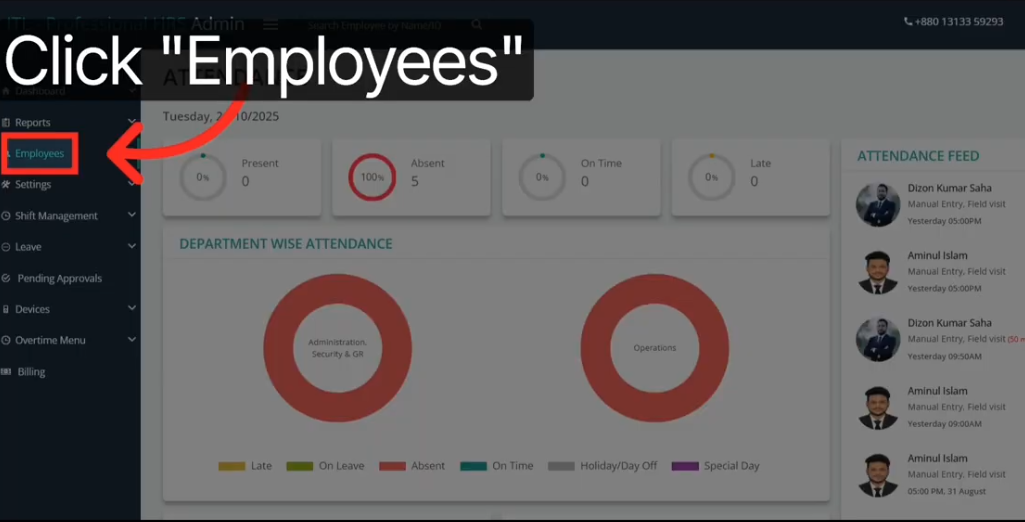
Log in to your ITL-Professional HRS Admin dashboard. Look at the left sidebar. You will see a list of menu options. Click on “Employees”.
This opens the main employee management area. This is your command center for all things related to your workforce. Everything you need for bulk employee management in Tipsoi starts right here.
Take a moment to look around. You will notice several options for managing and organizing your team. The one you need is in the next step.
Step 2: Access the Batch Tool
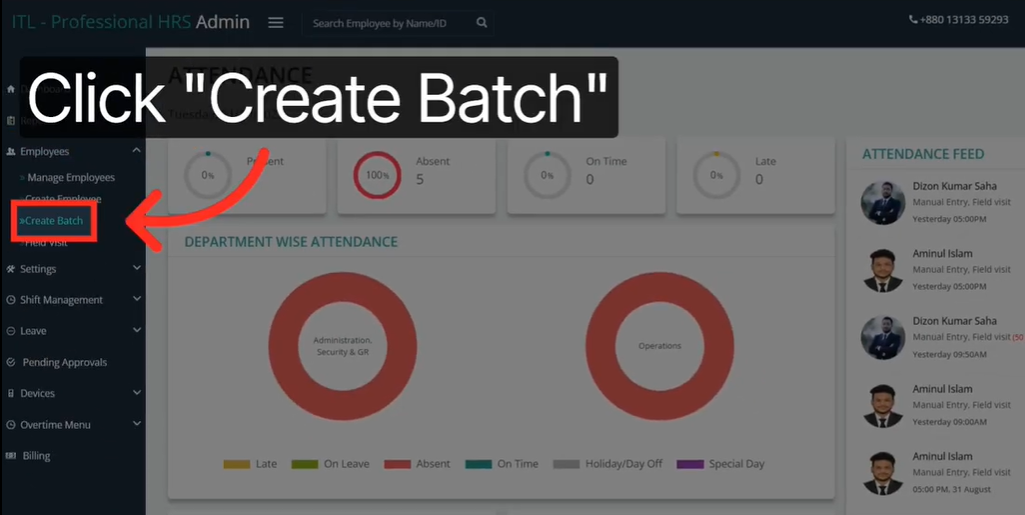
Once you are inside the Employees section, look for a dropdown or a sub-menu. You will see an option labeled “Create Batch”. Click on it.
This is where the magic happens. The Create Batch tool is the core of Tipsoi bulk employee upload. It opens a dedicated interface for uploading multiple employee records at once.
Do not close this window. You will need it for the next steps. Keep it open and get ready to download the template file.
Step 3: Download the Template File
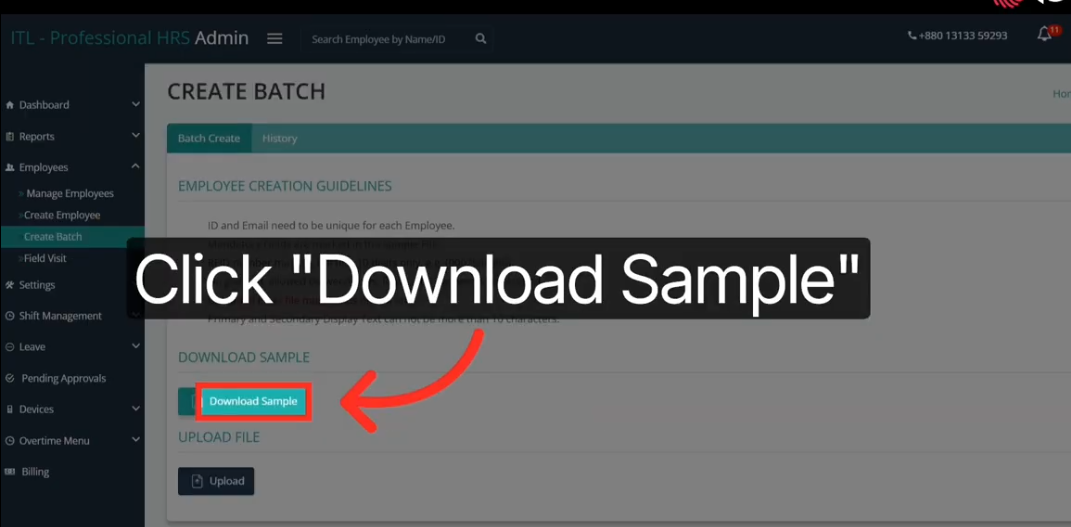
Inside the Create Batch screen, look for a button labeled “Download Sample”. Click it. This will download a pre-formatted CSV or Excel file to your computer.
This file is important. Think of it as the official map for your employee data. Every column has a specific purpose. Every header tells Tipsoi exactly what kind of information to expect.
Do not try to create your own spreadsheet from scratch. Always use this sample file. It ensures your data is clean, consistent, and ready for upload without any formatting issues.
Step 4: Fill In Your Employee Data
Open the downloaded sample file on your computer. Now start filling it in. Add each employee’s information into the correct columns.
Stick to the exact column headers you see in the file. Do not rename them. Do not delete any columns. Do not add extra spaces before or after your data.
Here is a quick checklist for what to include:
- Employee ID (must be unique for every person)
- Full Name
- Email Address (must be unique and valid)
- Department
- Job Title
- Phone Number
- Date of Joining
Once all your employee data is filled in, save the file. Keep it in a place you can find easily. You are about to upload it.
Step 5: Upload Your File to the Tipsoi Portal
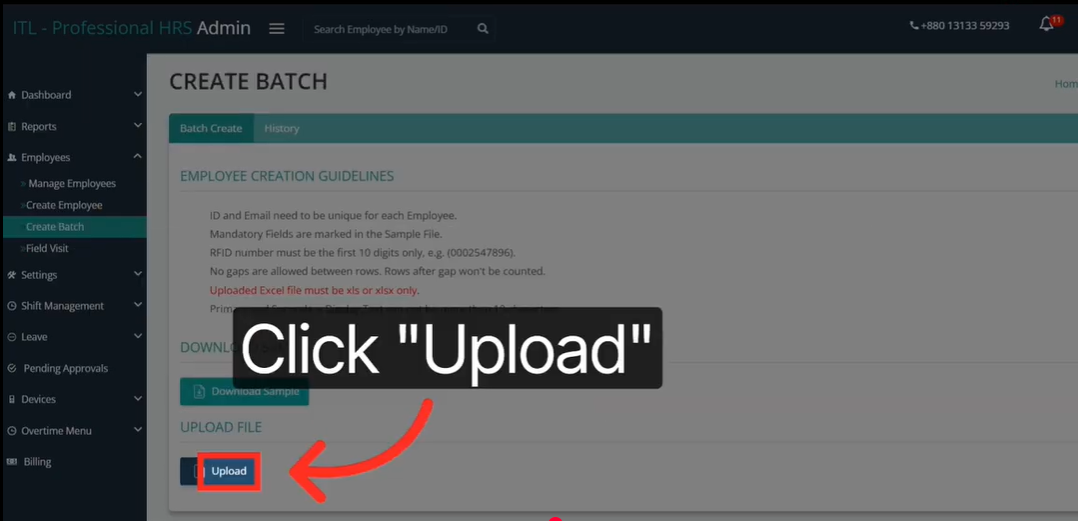
Go back to the Tipsoi admin portal. Inside the Create Batch screen, look for the “Upload” button. Click it. Select your filled template file from your computer.
The system will process your file. It will read each row and map the data to the correct fields. This usually takes just a few seconds, even for large files.
You will then see a preview of all the records you are about to add. Review this list carefully. Make sure the names, emails, and IDs look correct before moving forward.
Step 6: Confirm and Finalize the Batch
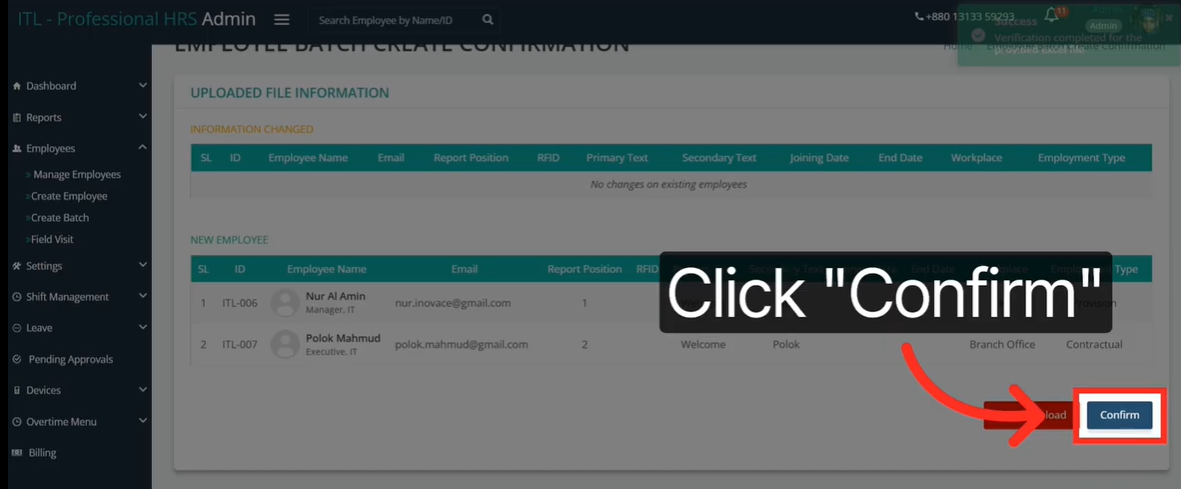
This is the final step. Once you are happy with the preview, look for the “Confirm” button. Click it.
Tipsoi will finalize the batch. All your employee records will be created in the system at once. No more clicking through individual forms. No more waiting. Your entire batch is live in seconds.
You will see a success message confirming the upload is complete. That is it. You have just mastered bulk employee management in Tipsoi.
Managing Your New Roster
You just uploaded a batch of employees. Now what? This is where ongoing management begins.
1. How to Verify Your Upload
After confirming the batch, go back to the main Employees section. Look for the “Manage Employees” option. Click on it.
You will now see your updated employee list. Every person you just added should be visible. Their profiles are active and ready to use for attendance tracking, payroll, and more.
Scroll through the list. Spot-check a few records. Make sure the names, emails, and departments look right. If something looks off, this is the right place to fix it.
2. Making Future Edits
The Manage Employees section is also where you go for individual profile changes. Maybe someone got a promotion. Maybe a phone number changed. Maybe there was a typo you just noticed.
All of that can be handled right here. Click on any employee to open their profile. Make your edit. Save it. The update is instant.
This is the beauty of Tipsoi HR software. Bulk uploads handle the heavy lifting. And individual edits stay simple and quick when you need them.
Pro-Tips for Error-Free Uploads
You know the steps now. But knowing the steps is only half the battle. Here are some tips to make sure your uploads go smoothly every single time.
1. Always Use Unique Identifiers
Every employee must have a unique ID and a unique email address. This is non-negotiable.
If two employees share the same ID or email, Tipsoi will flag the conflict. The upload may fail or create duplicate records. Double-check your spreadsheet before you upload. A two-minute review can save you a two-hour fix.
Think of unique identifiers as the foundation of your employee data. Get these right, and everything else falls into place.
2. Stick to the Template Format Exactly
This tip sounds simple. But it is the most common reason uploads fail.
Do not rename column headers. Do not reorder the columns. Do not add extra sheets to the file. Tipsoi reads the template in a specific way. Any change to the structure can confuse the system.
If you downloaded the sample file and filled it in correctly, you are already in great shape. Trust the template. It was designed to make the Tipsoi bulk employee upload as smooth as possible.
3. Review the Confirmation Screen Carefully
Before you hit that final “Confirm” button, slow down. Take 60 seconds to scan the preview screen.
Look for obvious issues. Are all the names showing up correctly? Are the emails formatted right? Is the count of employees what you expected? This quick review is your last line of defense before the data goes live.
Think of it like proofreading an email before you send it. A small effort now prevents a big problem later.
4. Keep a Backup of Your Template File
After a successful upload, save a copy of your filled template file. Store it somewhere safe with a clear file name and date.
This is useful for two reasons. First, it gives you a record of who was added and when. Second, it serves as a starting point for your next batch upload. You can update the file instead of starting from scratch every time.
Good bulk employee management in Tipsoi is not just about one upload. It is about building a repeatable process you can trust every hiring cycle.
5. Test With a Small Batch First
If this is your first time using the Tipsoi batch upload feature, start small. Add 5 to 10 employees in your first batch. Make sure everything looks right in the system before uploading 200 records.
This gives you confidence and helps you spot any formatting issues early. Once you are comfortable with the process, scaling up is easy.
Why Tipsoi Is Built for Modern HR Teams
Let us zoom out for a second. Why does Bulk Employee Management in Tipsoi work so well? The answer lies in how the platform was designed.
Tipsoi is not a legacy HR system. It is a modern, mobile-first workforce management tool built by Inovace Technologies. It was designed with growing companies in mind.
That means the tools inside Tipsoi are built to scale. The batch upload feature is not an afterthought. It is a core part of how the platform handles large teams. Fast, clean, and reliable.
For HR administrators, that reliability matters a lot. You are not just managing data. You are managing people’s livelihoods. Every employee record you create connects to their attendance, their payroll, and their access rights.
When that data is wrong, real problems happen for real people. Tipsoi’s bulk employee management system reduces that risk. It gives HR teams a structured, repeatable process they can count on every time.
Real-World Impact: What This Looks Like at Scale
Let us make this concrete. Imagine your company just signed a contract with a new client. You need to hire 80 field employees in the next two weeks.
With manual entry, that is 80 separate forms. 80 chances to make an error. Probably 4 to 6 hours of data entry work.
With Tipsoi bulk employee management, you download the template once. You share it with your HR team. They fill in the data. You upload one file. You confirm. Done.
The whole process takes minutes, not hours. Your new hires are in the system and ready for attendance tracking from day one. Your HR team is not burned out before the project even starts.
That is the real-world power of this feature. It does not just save time. It changes how your HR department operates under pressure.
Your HR Process Just Got Smarter
Let us bring it all together. Bulk Employee Management in Tipsoi turns a slow, error-prone task into a clean 5-step process.
You navigate to the Employees section. You open the Create Batch tool. You download the template. You fill it in and upload it. You confirm. Done.
No more one-by-one data entry. No more formatting errors. No more bottlenecks when your team is growing fast. Just a smarter, faster, and more reliable way to manage your workforce.
HR administrators who use this feature do not just save time. They build confidence in their data. They create a process that scales. And they free up mental energy for the work that really moves their company forward.
The best part? You do not need to be a tech expert to use it. If you can fill out a spreadsheet, you can master bulk employee management in Tipsoi.
Ready to Try It?
Log in to your Tipsoi dashboard right now. Head to the Employees section. Click Create Batch. Download the sample file.
Your first batch upload is just a few clicks away. Give it a try today and see how much time you save before lunch.
Your HR team will thank you. Your employees will benefit. And your data will be cleaner than it has ever been.
That is what modern HR management looks like. And it starts right here, with Tipsoi.
FAQ
1. What is Bulk Employee Management in Tipsoi?
It is a feature that lets HR admins upload multiple employee profiles at once using a single template file, instead of adding them one by one.
2. What file format does Tipsoi use for batch uploads?
Tipsoi provides a pre-formatted CSV or Excel sample file. Always use this template to avoid upload errors.
3. How many employees can I add in one batch?
Tipsoi is built to scale. You can upload small or large batches, whether that is 10 employees or 500, using the same simple process.
4. What happens if I make an error in the template?
The system will flag issues during the preview step before you confirm. Always review the confirmation screen carefully to catch mistakes early.
5. Can I edit individual employee profiles after a bulk upload?
Yes. After uploading, go to Manage Employees to view all records. You can click on any profile to make individual edits anytime.