


Tracking attendance is not the hard part. HR teams do it every day. The real problem is finding the right report quickly. Too many systems bury the data you need under confusing menus.
Good attendance management software changes all of that. It lets you review attendance data by month, date range, department, and employee type. Everything is in one place and easy to reach.
This guide walks you through how to view and filter detailed attendance reports step by step. Whether you are new to the system or just want to get faster at it, this is for you.
Why Attendance Management Software Matters for HR Accuracy
Manual attendance tracking is risky. It takes time, and mistakes happen often. A missed entry here, a wrong date there, and suddenly your payroll is off.
Attendance reports help HR teams see the full picture. You can check punctuality, spot absences, and verify employee records without going through stacks of files.
Better visibility leads to better decisions. It helps with payroll accuracy, compliance checks, and internal reporting. The whole HR process becomes faster and cleaner.
1. Reduces Manual Reporting Mistakes
When attendance is tracked automatically, the room for human error gets smaller. No more missed entries or wrong dates. The system captures everything in real time.
Your employee attendance report is always accurate. You do not have to double-check every record by hand. That alone saves hours every week.
Reliable data means reliable reports. And reliable reports mean fewer problems down the line.
2. Helps Teams Verify Attendance Data Faster
Need to check if someone was late last Tuesday? The software finds it in seconds. You just search, filter, and view. It is that simple.
No more waiting for someone to pull up a spreadsheet. No more email chains asking for attendance records. The data is right there when you need it.
Fast access to attendance data means faster decisions. And faster decisions mean a better-run team.
3. Supports Cleaner Payroll and HR Records
Payroll depends on accurate attendance data. If the data is wrong, the pay is wrong. That creates problems for employees and the company.
Attendance management software keeps records clean. Every check-in, check-out, and absence is logged correctly. Your payroll team always has the right numbers.
Clean records also help during audits and compliance reviews. You can pull up any report in seconds and show exactly what happened.
How Detailed Attendance Reports Save Time for Managers
Managers are busy. They do not have time to scroll through hundreds of employee records just to find one issue. That is where filters become a lifesaver.
A good detailed attendance report lets you narrow things down fast. You pick the team, the date range, or the department. The system shows only what you need.
This saves time. It reduces frustration. And it helps managers make smarter decisions without the overwhelm.
1. Filter by Month or Custom Date Range
Not every check needs a full-year report. Sometimes you just want to see one week or one month. The software lets you set a custom date range in a few clicks.
Want to check the monthly attendance report for September? Just select the month and the data loads instantly. No extra steps. No wasted time.
Date filters make reporting flexible. You look at what matters, when it matters.
2. Review Data by Department and Employee Type
Big companies have many departments. You do not want to mix up the sales team’s attendance with the tech team’s data. Department filters keep things separate.
You can also filter by employee type. Full-time, part-time, contract — each group can be reviewed on its own. That gives you cleaner and more useful reports.
The result is a report that makes sense for your specific team or role. Not a messy dump of all company data.
3. Find Attendance Issues Faster
When an employee has been absent too often, you want to catch it early. Filters help you spot patterns before they become problems.
A daily attendance report can show you who was late, who was absent, and who left early. You can check this every morning in under a minute.
Early detection means early action. That keeps your team on track and your records clean.
Step-by-Step Tutorial: How to View Detailed Attendance Reports – Tipsoi
Here is a simple walkthrough. Follow these steps and you will be viewing the right report in no time. Each step builds on the last.
Step 1 — Open the Attendance Report and Choose a Month
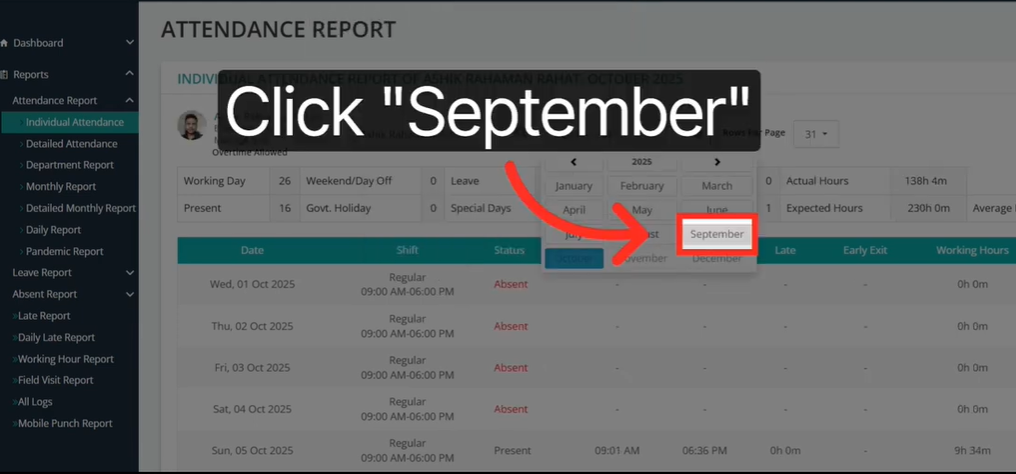
Start by opening the attendance module in your attendance management software. Look for the Reports section in the main navigation menu.
Once inside, you will see an option to filter by month. Select the month you want to review, such as September. This sets the time period for your report.
This is the first step for reviewing period-based attendance records. Always start here. It saves time and gives your report a clear focus.
Step 2 — Go to the Detailed Attendance Section
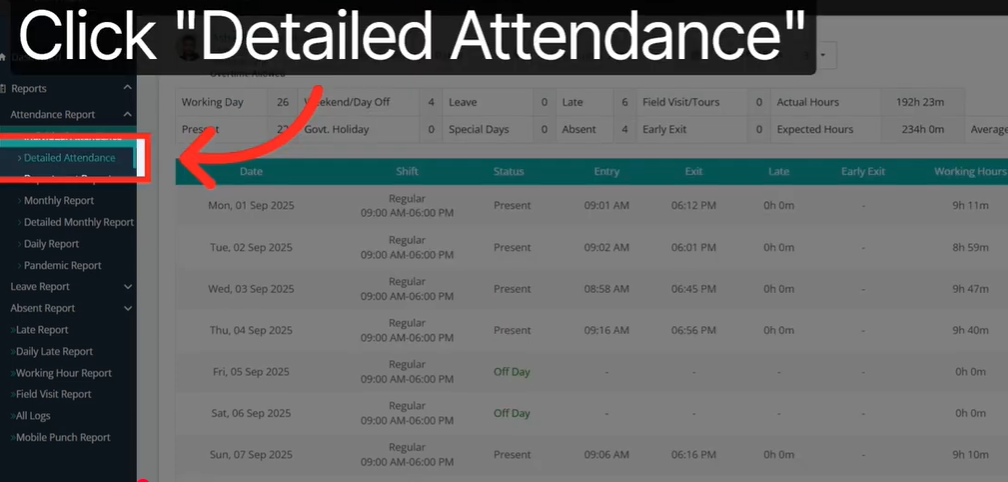
After selecting your month, look for the Detailed Attendance tab or section. It is usually listed alongside other report types in the navigation.
Click on it to open the detailed attendance report view. This section gives you a much deeper look at attendance data than a simple summary.
You will see individual employee records, check-in and check-out times, absences, and more. All in one clean view.
Step 3 — Select a Custom Date Range
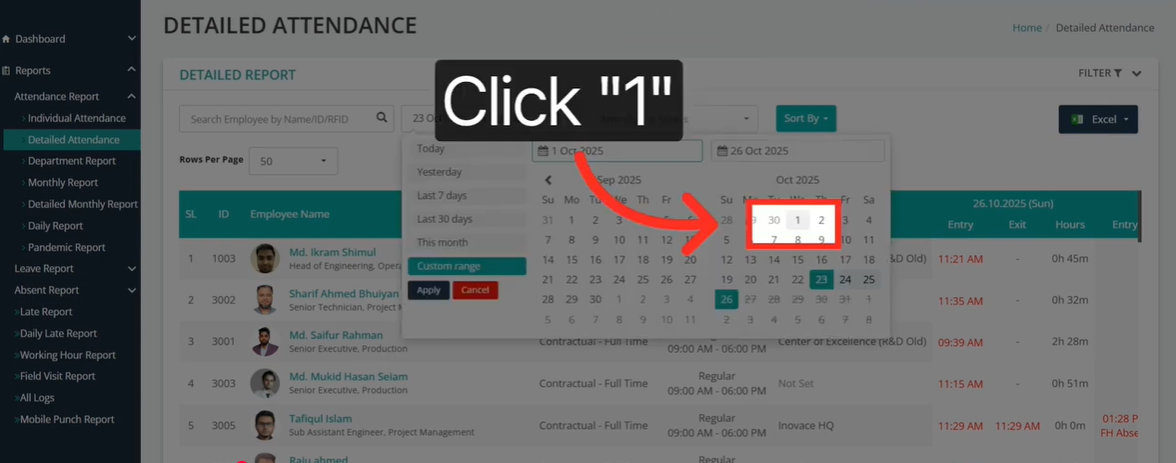
Need to see attendance for a specific week or two-week period? Use the custom date range option. It gives you full control over the reporting window.
Enter a start date and end date. The system will load only the data within that range. This is useful for checking attendance during a project, a holiday period, or a review cycle.
Custom date ranges make the employee attendance report much more flexible. Use it whenever the standard monthly view is too broad.
Step 4 — Apply Advanced Filters for Cleaner Reporting
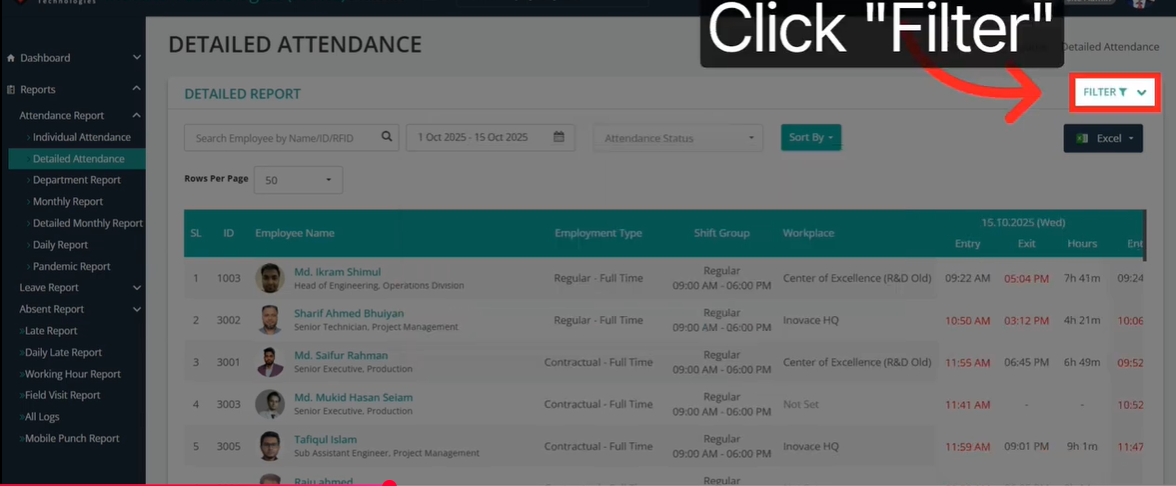
Now it is time to narrow down the data. The software gives you several filter options to help you see exactly what you need. Use them together for the most focused report.
Here are the filters you can apply:
- Department — See attendance for one specific team or unit.
- Sub-department — Drill deeper into a team’s structure.
- Designation — Filter by job role or title.
- Gender — Useful for diversity and inclusion reporting.
- Employment type — Separate full-time, part-time, or contract staff.
Each filter reduces the noise in your report. The result is a clean, focused view that helps you make decisions faster.
Step 5 — Explore Other Attendance Report Types
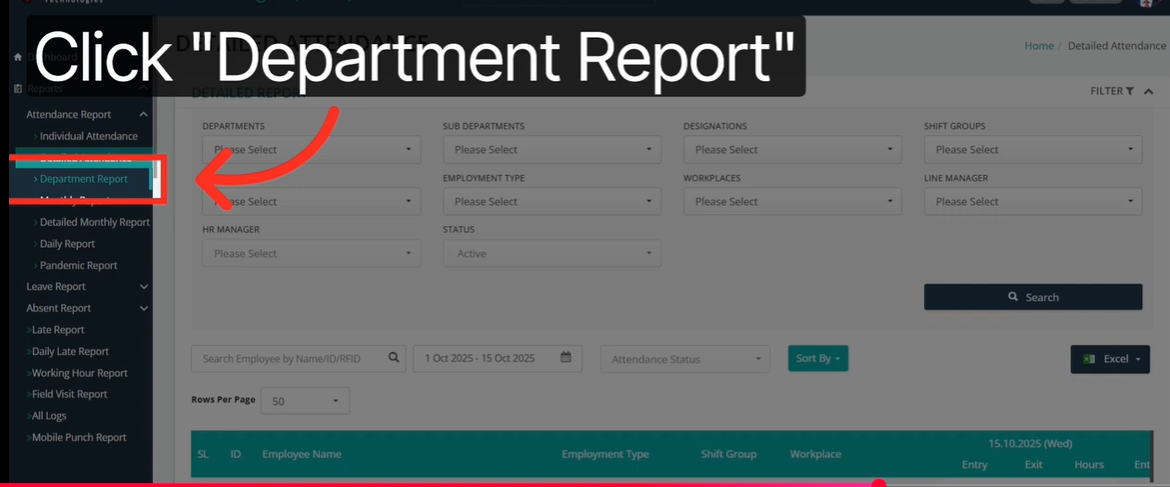
The software does not stop at one report type. There are several views available, and each one serves a different purpose. Here is what you can explore:
- Department Report — Shows attendance grouped by department. Great for team-level reviews.
- Monthly Attendance Report — A full month view with totals. You can also set a custom date range here.
- Detailed Monthly Report — A more granular version of the monthly view. Shows individual records within the month.
- Daily Attendance Report — A snapshot of one specific day. Useful for daily check-ins and quick reviews.
All these views are available from the same reporting area. You can switch between them in seconds. No need to leave the reports section.
This flexibility means the software works for all kinds of HR needs. Daily check-ins, monthly summaries, or department deep-dives — it handles all of them.
Best Ways to Use Attendance Reports in Daily HR Work
Knowing how to run a report is one thing. Knowing how to use it is another. Here are the smartest ways to make attendance reports part of your daily HR routine.
HR teams and managers who build a reporting habit catch issues faster. They also spend less time on manual checks. The data does the heavy lifting for them.
Start small. Pick one report and use it every week. Once it becomes a habit, add another. You will be surprised how much time you save.
1. Use Reports for Payroll Review
Before every payroll cycle, run an employee attendance report for the period. Check for any missing records or unusual patterns.
Cross-reference the attendance data with the payroll numbers. If something looks off, the report will help you find it fast. No more end-of-month surprises.
Clean payroll starts with clean attendance data. Make this review part of your monthly routine.
2. Monitor Punctuality and Absence Trends
A monthly attendance report is great for spotting trends. Is one employee consistently late every Monday? Are absences spiking at the end of the quarter?
Trends are hard to see in daily data. But zoom out to a monthly view and the patterns become clear. That is where the insight lives.
Use this data in performance conversations. It gives you facts to back up your observations. That makes the conversation easier and more fair.
3. Check Team-Level Attendance Performance
Department heads can use the Department Report to track their team’s attendance without seeing the whole company’s data. This keeps things private and focused.
Run this report weekly or bi-weekly. Compare it to the previous period. Are things improving or getting worse? The data will tell you.
Team-level visibility helps managers stay proactive. They catch small issues before they become bigger problems.
Conclusion
Attendance management software is most powerful when you know how to use it. Knowing which report to run and how to filter it makes all the difference.
With detailed attendance reports, monthly attendance reports, and daily attendance reports all in one place, your HR team can save time and improve accuracy.
The steps in this guide are simple to follow. Start using them today. You will see the difference right away.
Ready to Simplify Attendance Tracking?
Want a simpler way to review attendance data and reduce manual HR work? Use a smart attendance management system like Tipsoi to track, filter, and manage employee attendance reports with ease. Your HR team deserves tools that actually work.
FAQs
1. What is attendance management software?
It is a tool that helps HR teams track, manage, and report employee attendance automatically — without manual work.
2. How do I generate a detailed attendance report?
Open the reports section, select your date range, apply filters like department or employment type, and export your detailed attendance report instantly.
3. Can I view a monthly attendance report for a specific team?
Yes. Use the department filter inside the monthly attendance report to see data for one team only.
4. What does a daily attendance report show?
A daily attendance report shows who was present, absent, or late on a specific day. It helps managers do quick morning check-ins.
5. How does an employee attendance report help with payroll?
An employee attendance report gives payroll teams accurate check-in and check-out data. This reduces errors and ensures every employee is paid correctly.