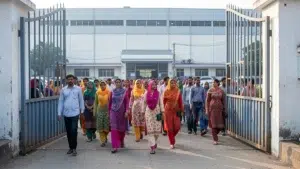

It is 8:58 AM. The shift starts in two minutes. A worker presses her finger to the scanner and nothing happens. She tries again. Still nothing. Forty people are waiting behind her, and she is about to be marked late for a machine error she did not cause.
That scene plays out on factory floors, in office lobbies, and at school gates every working day. The device is broken in no obvious way. It scanned her fine last week. Today it will not read her at all.
A biometric machine stops working for one of three reasons: a sensor that cannot read, a weak stored template, or a device fault. Fingerprint, face, and RFID readers each fail differently, and each has a different fix.
Biometric and card-based attendance devices all fail, and they fail for different reasons depending on the type:
- Fingerprint scanners fail on worn skin, moisture, and dirty sensors
- Face recognition devices fail on backlighting, low light, and covered faces
- RFID and card readers fail on damaged cards, weak read range, and metal interference
This guide covers six things:
- What each biometric error type means, so you can tell which problem you actually have
- How often each device type fails, based on published test data rather than vendor claims
- Why fingerprint, face, and RFID devices fail, with the fix for each cause
- What an employee can do at the device when they have no admin access
- How a technician should diagnose a device before replacing it, and what to check before buying one
- Which fallback method fits your workplace when the primary device rejects someone
What Does a Biometric Error Actually Mean?
A biometric error is any outcome where the system cannot confirm a person’s identity from their biological sample, even though that person is enrolled and standing right there. The term covers four separate technical events, and knowing which one you are looking at tells you how to fix it.
What are the four types of biometric error?
- Failure to Capture (FTC). The sensor cannot get a usable image at all. There is nothing to compare. Usually a dirty sensor, wet skin, or bad lighting. Here is how to clean and maintain a fingerprint machine.
- Failure to Enroll (FTE). The person cannot be registered in the first place. Their fingerprint ridges are too worn or damaged to produce a template. This stays permanent until something changes.
- False Rejection (FRR). The sample was captured and compared, but the match score fell below the threshold, so the system refuses a genuine enrolled user. Most complaints about a biometric machine not working are false rejections.
- False Acceptance (FAR). The system matches the wrong person. Rare, and the opposite risk from false rejection.
Those last two pull against each other. A device tuned for tight security rejects more genuine users. A device tuned for smooth throughput occasionally lets the wrong person through. No threshold setting removes both errors at once.
How Often Do Biometric Devices Fail?
In controlled testing, the best fingerprint algorithms miss 1.9 percent of genuine users on a single finger, falling to 0.27 percent with two fingers enrolled. Real workplaces run higher. Here are the published figures.
How accurate are fingerprint devices?
In the US National Institute of Standards and Technology’s Fingerprint Vendor Technology Evaluation (FpVTE 2012), the most accurate algorithms tested reached a false negative identification rate of 1.9 percent using a single index finger. With two index fingers enrolled, that fell to 0.27 percent. With ten fingers, 0.09 percent.
Same algorithms, same test data. The only variable was how many fingers were registered.
Translate that into a shift. At a 1.9 percent miss rate, a site with 500 workers sees roughly 9 or 10 failed scans every shift change. Enrolling a second finger cuts that to about 1. Registering more fingers at enrollment is the cheapest accuracy improvement available anywhere in this article, and it costs nothing but a few seconds per employee.
Which device type fails most often?
The World Bank’s ID4D Practitioner’s Guide reports failure-to-capture rates by biometric type across large-scale identity programmes:
- Fingerprint: under 2 to 5 percent of a general population
- Iris: roughly 1 to 2 percent
- Face: close to 0 percent
The same guide names manual labourers explicitly as a group where reliable fingerprint capture is difficult, alongside elderly people and people with cuts, diabetes, or certain disabilities.
Card readers have no capture rate in the biometric sense, because there is no body part to read. Their failure mode is different. Cards get lost, cracked, or lent to a colleague, and roughly 1 to 3 percent of a card population needs replacement in any given year depending on how roughly they are handled.
Why will your real failure rate be worse than the test data?
Those figures come from controlled evaluations with clean sensors, trained operators, and good lighting. NIST measures the algorithm. Your site measures the algorithm plus humidity, dust, worn ridges, a backlit doorway, and a scanner nobody has wiped since it was installed.
Plan around the field number, not the datasheet number. If a vendor quotes you 99.9 percent accuracy, ask which test produced it and under what conditions.
Why Does a Fingerprint Scan Fail at the Gate?
Failures are not random. Each cause leaves a signature in when and for whom it happens. Learn to read them and you can diagnose most problems without opening the admin panel.
- Worn or smoothed fingertips. Fails consistently, on every finger, for the same people every day. Common in textiles, construction, and agriculture where abrasive work physically reduces ridge height.
- Wet or sweaty fingers. Fails in bursts, usually right after rain or a break where people wash their hands. Moisture fills the ridge valleys and flattens the contrast the sensor depends on.
- Dry or cracked skin. Fails worst in the early morning and in air-conditioned rooms. Ridge contact is too light for the sensor to register a full image.
- Soft or partial press. Fails intermittently, often with older or smaller-handed staff who do not apply enough contact area.
- Fresh cut or bandage. Fails on one specific finger, suddenly, with no prior history. Obvious once you look at the hand.
- Cold hands. Fails on winter mornings and near cold storage. Reduced blood flow flattens the ridges temporarily.
- Bad enrollment template. Fails for the same handful of people regardless of conditions, on every device. The stored template is the problem, and today’s scan is not.
That last one deserves attention. If five employees fail every day while everyone else scans cleanly, stop cleaning the sensor. The sensor is fine. Their templates are weak and need re-enrollment.
What Causes Fingerprint Device Failure?
Fingerprint failures fall into three buckets: environment, biology, and hardware. Diagnose the bucket first, because the fix is completely different in each one.
1. How does the environment cause scan failures?
- Humidity. Moisture collects on optical sensor glass continuously in tropical and monsoon climates. Wet glass scatters the image and drops match scores across the whole workforce at once.
- Dust. Construction sites, warehouses, spinning floors, and cement plants coat a sensor within days. Dust is the single most common cause of a sudden spike in rejections.
- Temperature. Devices mounted in direct sun overheat and throttle. Devices near cold storage read poorly because employees arrive with cold, flattened fingertips.
- Power fluctuation. Unstable voltage causes freezes and read errors that look exactly like sensor faults but are not.
Quick tip: Wipe the sensor with a dry microfibre cloth before the first scan of every shift, and keep a small towel at the device so people can dry their hands. Those two habits alone remove most weather-driven failures. Never use alcohol, spirit, or glass cleaner on sensor glass, because it clouds the coating permanently.
2. How do skin and body changes cause scan failures?
Fingerprints wear down. Ridge height physically reduces with abrasive work, and no algorithm can read a ridge that is no longer there.
- Skin condition: dry skin, eczema, and cuts all reduce print clarity
- Age: print quality degrades noticeably in adults over 70, the lowest of any age group
- Injury: a fresh cut or bandage blocks the scan entirely
- Chemicals and heat: dyes, solvents, adhesives, and hot surfaces cause temporary changes that last days
- Occupation: textile, construction, and agricultural work smooths ridges faster than office work
Quick tip: Enroll four fingers per person, not one. Both index fingers plus both thumbs. NIST’s testing shows a single finger at a 1.9 percent miss rate falling to 0.27 percent with two. Nothing else on this list gives that return for zero cost. For staff in heavy manual work, register the thumbs first, since thumbs wear more slowly than index fingers.
3. How do hardware and software faults cause scan failures?
- Sensor degradation. Scratched or clouded glass produces partial reads long before it looks damaged to the eye.
- Firmware bugs. Older versions cause freezes and false rejections that appear random and untraceable.
- Calibration drift. A device never recalibrated since installation reads measurably worse than one serviced quarterly.
- Storage limits. Devices at template capacity start refusing new enrollments or silently overwriting old ones.
- Sync failure. The scan succeeds but the record never reaches the server, so the employee appears absent despite scanning fine.
Quick tip: Run the device’s built-in self-test once a month and check the firmware version at the same time. If attendance data is missing but employees insist they scanned, check the sync log before you blame the sensor. A sync problem and a scan problem look identical from the HR side and have nothing in common.
Why Does Face Recognition Fail?
Face recognition fails on lighting, occlusion, and outdated templates rather than on skin condition. Face capture failure sits near 0 percent where fingerprint capture failure runs 2 to 5 percent, so it does solve the worn-fingertip problem. It brings its own failure modes, and they are environmental.
1. How does lighting break face recognition?
- Backlighting. A device mounted facing a doorway or window sees a silhouette. This is the most common cause of face scan failure in office entrances anywhere, and it is a mounting mistake rather than a device defect.
- Direct sunlight. Blown-out highlights on one side of the face break the geometry the algorithm measures.
- Low light. Units without infrared illumination fail at dawn and after dark, then work perfectly at 10 AM. If your failures cluster by time of day, this is why.
- Harsh overhead lighting. Downward fluorescents throw shadows into the eye sockets and under the nose, which is exactly where the algorithm takes measurements.
Quick tip: The light source must be behind the camera, never behind the face. Walk to the device at 7 AM and again at 2 PM and look at the preview screen. If you see a dark outline instead of a face, move the device or add a diffused light in front of it. This one change fixes more face recognition complaints than any software setting.
2. How do masks, caps, and mounting height break face recognition?
- Masks, caps, and safety gear. Hard hats, hairnets, dust masks, and face shields cover the landmarks the template depends on. Factory, food processing, and hospital settings hit this constantly.
- Mounting height. A unit set for someone 5 feet 8 inches tall will not frame someone 5 feet 0 inches. They tilt their head up, the angle changes, and the match fails.
- Approach angle. People walking past at speed present a profile rather than a front view.
- Glasses and reflection. Thick lenses and anti-glare coatings reflect the device’s own illuminator back into the camera.
Quick tip: Mount face units at 145 to 160 cm and test the framing with your shortest and tallest employees on day one, not after complaints start. Post a small sign at the device asking people to remove caps and masks at the scan point, and mark a floor position so everyone stands at the same distance and angle.
3. Why does a face that used to work stop working?
- Ageing. Templates captured years ago drift out of date, especially for younger employees whose faces are still changing.
- Facial hair. A newly grown or shaved beard changes the lower face geometry significantly.
- Weight change. Substantial gain or loss alters the measurements the template stores.
- Low-quality original capture. A face enrolled in bad light produces a weak template that keeps failing afterwards.
- Spoof attempts. Printed photos and phone screens will pass on devices without liveness detection, which is a security failure rather than a recognition failure.
Quick tip: Re-enroll faces once a year as routine, and immediately after any major appearance change. Always enroll in the same lighting conditions where the device will actually be used, because a template captured in a bright office will underperform at a dim factory gate. Turn on liveness detection if the device supports it.
Why Do RFID Cards and Readers Fail?
Card systems fail from card damage, reader mounting, or process gaps, never from biology. That independence is exactly what makes them a good fallback for a fingerprint system.
1. What damages an RFID card?
- Cracked antenna. The RFID coil runs around the inside edge of the card. Bending the card, sitting on it, or dropping it repeatedly breaks the coil, and the card dies with no visible damage.
- Delamination. Heat and humidity separate the card layers, which shifts or damages the chip.
- Punched holes. A hole punched for a lanyard through the antenna path kills the card instantly. This is a surprisingly common self-inflicted failure.
- Worn contact cards. Contact smart cards degrade with every insertion, unlike contactless cards.
Quick tip: Issue cards with a pre-made lanyard slot and tell staff never to punch their own. Keep 5 percent spare stock so a broken card is replaced the same day rather than becoming a week of manual entries.
2. Why does a card reader lose its read range?
- Metal interference. Readers mounted directly on steel doors, metal frames, or grilles lose most of their read range, because metal detunes the antenna field.
- Reader-to-reader interference. Two units mounted within about a metre of each other interfere and cause intermittent misreads.
- Wrong frequency or format. Cards ordered at 125 kHz will not work with a 13.56 MHz reader, and cards from a different vendor may use an incompatible format even at the same frequency.
- Tap speed. People walk past too fast for the reader to complete the exchange, then blame the card.
- Moisture and dust in the reader. Outdoor gate readers without proper sealing corrode internally within a monsoon season.
Quick tip: Mount readers on a non-metallic spacer if the surface is steel, and keep at least a metre between adjacent readers. Mark a tap point on the reader face so people know exactly where to hold the card and for how long. If read range has dropped over time, test with a brand new card before you replace the reader, since it is usually the cards that aged rather than the unit.
3. What process gaps break a card system?
- Lost and forgotten cards. The single largest cause of card-based attendance gaps. Someone leaves their card at home and there is no process for it.
- Buddy punching. A card proves the card was present rather than the person, which is the main security weakness of card-only systems.
- Deactivated cards still in circulation. Cards not revoked when someone leaves remain a live access risk.
- Duplicate assignment. Admin errors that assign one card ID to two employee records produce attendance data that makes no sense.
Quick tip: Pair cards with a PIN or a face check for anything security-sensitive, so a borrowed card alone cannot clock someone in. Run a quarterly audit that compares active cards against active employees, and revoke on the last working day rather than whenever HR gets to it.
How Do You Fix the Most Common Biometric Problems?
Match your symptom to the block below and work through the fixes in order. Most of these resolve without a vendor call.
Problem 1: A worker’s finger is never recognised, on any device
- Check their match score in the admin panel. A consistently low score means a weak template, not a bad scan.
- Re-enroll them using four fingers, prioritising thumbs if they do manual work.
- If re-enrollment still produces a low-quality template, their ridges are too worn. Stop retrying and move them to a card or face fallback permanently.
- Record the exception in HR so nobody keeps raising the same ticket.
Problem 2: Scans work at 10 AM but fail at 7 AM
- On face devices this is lighting. On fingerprint devices it is cold, dry skin.
- For face units, add diffused light at the entry point or switch to a device with infrared support.
- For fingerprint units, keep a hand towel at the device and ask staff to rub their hands together before scanning.
- Check the rejection log timestamps to confirm the pattern before spending money on hardware.
Problem 3: Face scan fails at the main gate but works at the office door
- Stand where the employees stand and look at the light. The gate is almost certainly backlit.
- Reposition the device so the light falls on the face rather than behind it.
- If repositioning is impossible, add a canopy to kill the direct sun, or a front-facing light for dawn and dusk.
- Re-test at three different times of day before closing the ticket.
Problem 4: A card reads sometimes but not always
- Test the same card on a second reader. If it fails there too, the card antenna is cracked. Replace it.
- If the card works elsewhere, check what the failing reader is mounted on. Steel surfaces cut read range badly.
- Check the distance to the nearest other reader. Under a metre causes interference.
- Mark a tap point on the reader so people hold the card in the right place long enough.
Problem 5: The same five employees fail every single day
- Stop cleaning the sensor. It is working for everyone else.
- Pull the match scores and enrollment dates for those five people specifically.
- Re-enroll all five with more fingers, in the lighting conditions of the actual device location.
- If two or three still fail after re-enrollment, move them to a permanent fallback method instead of repeating the cycle.
Problem 6: Attendance data is missing even though people scanned
- This is a sync problem rather than a scan problem. The device recorded the punch and never delivered it.
- Check the device’s network or USB connection and the last successful sync timestamp.
- Check whether device storage is full, which stops new records being written.
- Restart the device, force a manual sync, and confirm the missing records appear before correcting anything by hand.
Problem 7: The whole device is down and 200 people are waiting
- Switch to your documented fallback immediately. Do not troubleshoot with a queue building.
- Have a supervisor record names on paper or a phone with a timestamp.
- Give HR the list the same day so corrections are logged within 24 hours.
- Diagnose the device after the rush, not during it.
What Should an Employee Do When the Scanner Rejects Them?
If you have no admin access, you have six things you can do at the device, and all of them take under a minute. Most employees are told to “try again” and nothing else, which is why the same failures repeat every morning.
What can you try at the device right now?
- Dry your hands and wipe them together. Wet fingers fail more often than worn ones. If your hands are cold, rub them together for a few seconds first to bring blood back to the fingertips.
- Press flat, firm, and centred. Use the pad at the centre of your fingertip, not the tip and not the side. Hold still until the device responds instead of tapping and lifting.
- Try a different registered finger. If HR enrolled more than one, use the next one. Most people never learn which of their fingers are registered, so ask once and remember.
- On a face device, remove your cap or mask and face the light. Stand square to the camera at the marked spot. If the sun is behind you, step so it falls on your face instead.
- On a card reader, hold the card still against the marked point. Walking past at speed is the most common reason a working card seems to fail. Do not keep the card in a wallet stacked with other cards.
- Stop after three attempts. Repeated failed scans do not improve the odds and they hold up the queue behind you.
What should you do if it still will not scan?
The goal here is proof of presence, recorded the same day. Attendance disputes get much harder to resolve a week later.
- Tell your supervisor immediately, before you start work. Not at lunch, not at the end of the shift. A supervisor confirming you were there at 8:58 AM is worth far more than one confirming it from memory at 6 PM.
- Take a photo of the device screen showing the failure and the time. A timestamped photo is simple evidence and costs you nothing.
- Ask for the correction to be logged the same day. Most systems allow a manual entry within 24 hours. After that it usually needs a manager approval you will have to chase.
- Ask HR to re-enroll you if it has happened three times. Repeated failures mean your stored template is weak. Re-enrollment takes two minutes and fixes it permanently. Ask for four fingers this time.
- Never ask a colleague to punch for you. In most workplaces this is a disciplinary offence for both people, and card systems log it clearly.
Quick tip: If your fingers are worn from the nature of your work, say so directly and ask to be moved to face or card verification. This is a recognised limitation, documented by the World Bank as affecting manual labourers specifically, and it is not a performance issue on your part.
Scanner Rejected You? Do This
No admin access needed. Each fix takes under a minute at the device.
My finger is never recognised
- Dry your hands and rub them together for a few seconds
- Press flat and firm using the pad at the centre of the fingertip
- Try a different registered finger
- After 3 failures, ask HR to re-enroll you with four fingers
It works at 10 AM but fails at 7 AM
- Cold hands flatten the ridges. Rub your palms together first
- On a face device, step so the light falls on your face, not behind you
- Report the time pattern to HR. It is a lighting or temperature issue, not you
My card reads sometimes, not always
- Hold the card still at the marked point. Do not walk past
- Take it out of your wallet. Stacked cards block the read
- If it is bent or hole-punched, the antenna is broken. Ask for a replacement
Face scan fails at the gate
- Remove your cap or mask at the scan point
- Stand square to the camera at the marked floor position
- If the sun is behind you, move so it lights your face
The device is down and everyone is queueing
- Do not keep retrying. Step aside so the queue moves
- Make sure a supervisor records your name and time
- Confirm with HR the same day that your entry was logged
If it still will not scan
- Stop after three attempts. More tries do not improve the odds
- Tell your supervisor before you start work, not at the end of the shift
- Photograph the failure screen showing the time
- Ask for the correction the same day. After 24 hours it needs manager approval
- Never let a colleague punch for you. It is a disciplinary offence for both of you
What Should a Technician Check Before Replacing a Device?
Work from cheapest cause to most expensive: sensor surface, then enrollment data, then power and network, then firmware, and only then the hardware itself. Most units sent for replacement were never actually faulty.
What is the correct diagnostic order?
- Confirm the failure is device-wide, not person-specific. Test with three employees who normally scan cleanly. If they pass, the device is fine and the problem is enrollment data.
- Inspect and clean the sensor surface. Look at the glass under angled light for scratches, clouding, and residue from someone having cleaned it with spirit.
- Check the power supply under load. Measure at the device, not at the socket. Voltage sag during shift change causes intermittent faults that never reproduce during a quiet afternoon test.
- Check the network path and last sync timestamp. A device that scans correctly but never delivers records looks broken to HR and tests perfectly on the bench.
- Read the error log and note the codes. Vendor codes narrow the fault far faster than trial and error, and you will need them for any warranty claim.
- Check firmware version and template storage capacity. A device at capacity refuses new enrollments and behaves erratically.
- Run the built-in self-test and recalibrate. Only escalate to replacement if the self-test reports a sensor fault after this.
Step-by-Step Fix: Work Cheapest Cause First
Stop at the first step that resolves it. Do not skip ahead to hardware.
Test with three known-good employees
People who normally scan cleanly, at the failing device. Thirty seconds, and it splits the whole problem in two.
Inspect and clean the sensor surface
Look at the glass under angled light for scratches, clouding, and residue from someone cleaning it with spirit. Dry microfibre only.
Measure power at the device under load
At the device, not the socket, during shift change. Voltage sag causes intermittent faults that never reproduce on a quiet afternoon.
Check the network path and last sync timestamp
A device that scans correctly but never delivers records looks broken to HR and tests perfectly on the bench.
Read the error log and record the codes
Vendor codes narrow the fault faster than trial and error, and you will need them for any warranty claim.
Check firmware version and template storage
A device at template capacity refuses new enrollments and behaves erratically. Update firmware, then run the self-test and recalibrate.
Only now escalate to repair or replacement
Contact the vendor with the error codes, the self-test result, and what you ruled out in steps 1 to 6. Ask for the written turnaround time and whether the spare is held locally or imported.
Which settings should you change if the device keeps rejecting fingerprints?
Change the matching threshold and the image quality setting, in that order, and only after ruling out a dirty sensor and weak templates. Settings changes mask problems that cleaning and re-enrollment actually solve, so treat this as step four rather than step one.
- Matching threshold or security level. Most devices offer levels roughly 1 to 5, or a numeric score. Lowering it by one step reduces false rejections noticeably. It also raises false acceptance, so never drop it more than one level, and never on a door that controls access to cash, stock, or restricted areas.
- Verification mode. Switching from identification (1:N, where the device searches every template) to verification (1:1, where the employee enters an ID first) improves accuracy immediately on large databases. It costs a few seconds per person and is worth it above roughly 500 enrolled users.
- Image quality threshold at enrollment. Raising this rejects weak captures at registration instead of storing a template that fails daily for years. Raise it for enrollment, not for matching.
- Number of templates per user. Confirm the device is set to allow multiple fingers per person. Some units ship limited to one or two.
- Timeout and retry count. A very short scan timeout causes failures that look like rejections. Extending it by a second or two helps older employees.
Quick tip: Record the original settings before changing anything, change one setting at a time, and check the rejection log after two working days. Changing three settings at once tells you nothing about which one helped.
Which brand should a business buy for long-term support?
This is the part that determines whether a device is still running in year five, and it has very little to do with the spec sheet.
Most attendance hardware sold in Bangladesh is imported. Brands like Hikvision, ZKTeco, and Dahua are manufactured in China and reach the local market through importers and resellers. The hardware itself is capable. The problem appears afterwards, because there is no manufacturer-operated service centre in Bangladesh behind those units. Support quality depends entirely on whichever importer sold that specific device, spare parts arrive by import order rather than off a local shelf, and firmware support follows the manufacturer’s global roadmap instead of your deployment.
What that means in practice:
- Repair turnaround stretches into weeks when a part has to be imported, and a factory gate cannot wait weeks
- The reseller may not exist in year four, and when the importer moves on, support for their installed base moves with them
- Firmware and software updates are not guaranteed for a market the manufacturer does not directly serve
- No local engineering means no site visit, so mounting, lighting, and enrollment problems get diagnosed over the phone or not at all
A locally based supplier changes that calculation. Companies with their own service infrastructure in Bangladesh, Tipsoi among them, hold spare parts locally, send engineers to site, and remain reachable for the full life of the deployment.
Ask these five questions before any purchase, whatever the brand:
- Where is the nearest service centre, and is it operated by the manufacturer or by a reseller?
- What is the guaranteed repair or replacement turnaround time, in writing?
- Are spare sensors and boards held in stock in Bangladesh, or imported per request?
- How long will firmware and software updates be provided, and who provides them?
- Will an engineer visit the site for installation, mounting, and lighting assessment?
A cheaper device with no local support costs more over five years than a well-supported one, once you add up downtime, manual attendance corrections, and eventual early replacement.
Diagnose Before You Replace
Admin panel access required. Most units sent for replacement were never faulty.
The same five employees fail every day
Everyone else scans fine
- Stop cleaning the sensor. It works for everyone else
- Pull match scores and enrollment dates for those five only
- Re-enroll all five with four fingers, in the device’s actual lighting
- Still failing? Move them to a permanent card or face fallback
Attendance data missing though people scanned
Sync fault, not a scan fault
- Check the last successful sync timestamp
- Check network or USB connection at the device
- Check local storage is not full. A full device stops writing
- Export the local log before restarting. A restart can lose buffered punches
Face fails at the gate, works at the office door
Mounting, not hardware
- Stand where employees stand. The gate is almost certainly backlit
- Reposition so light falls on the face, never behind it
- Cannot move it? Add a canopy for sun or a front light for dawn
- Re-test at three different times of day before closing the ticket
Device keeps rejecting good fingerprints
Sensor and templates already ruled out
- Lower the matching threshold by one level only. Never on a secure door
- Switch 1:N to 1:1 verification above roughly 500 enrolled users
- Raise image quality threshold at enrollment, not at matching
- Extend the scan timeout by a second or two
- Change one setting at a time. Check the log after two working days
Device dead on payroll day
No time to troubleshoot
- Switch to the documented fallback immediately
- Export the device log before touching anything
- Run payroll from manual records plus what already uploaded
- Diagnose after payroll is out, never during
Which Fallback Method Should You Choose?
Your fallback should fail for a different reason than your primary method. Backing up a fingerprint with a second fingerprint helps a little. Backing it up with a card or a face helps a great deal, because worn skin affects neither one.

Match your situation below.
Garment factory or manufacturing
Main problem: worn fingertips, heavy dust, and 500 people through a gate in ten minutes.
Use: face recognition as primary, RFID card as fallback. Skip fingerprint-first entirely for cutting, dyeing, and finishing sections. Throughput matters as much as accuracy here, which rules out PIN entry as a practical backup. This is the profile of most large RMG floors in Bangladesh, where abrasive work and monsoon humidity hit fingerprint devices from both sides at once.
Corporate office
Main problem: occasional dry skin and injuries, low daily volume.
Use: fingerprint primary with four fingers enrolled, PIN as fallback. Volume is low enough that a slow fallback is acceptable. Add a smart card if the same credential also opens doors.
Field force, sales, and delivery
Main problem: no fixed device to scan on, and hands are wet or dirty half the time.
Use: mobile GPS check-in with face verification, supervisor approval as fallback.
School, college, or hospital
Main problem: hygiene concerns about shared-touch sensors, plus masks and caps.
Use: contactless card primary, face as fallback with a mask-tolerant algorithm.
Warehouse or construction site
Main problem: gloves, heavy dust, outdoor mounting.
Use: RFID card primary with a sealed outdoor-rated reader, face recognition as secondary at the site office. Gloves make fingerprint a non-starter, and airborne dust will disable an unprotected optical sensor within months.
Attendance Fallback Methods Compared
What to use when the primary device rejects someone
| Method | Cost | Security | Speed | Weakness | Best for |
|---|---|---|---|---|---|
| 2nd finger enrolled | Free | High | Same as primary | No use if all fingers worn | Everyone. Do first. |
| RFID card | Low | Low | Under 1 sec | Lost, shared, cloned | Factory gates |
| Smart card | Mid | Medium | Fast | Lost or lent | Offices with doors |
| PIN entry | Free | Low | 5 to 10 sec | Buddy punching | Small offices |
| Finger plus face | High | Highest | Fast, auto | Face needs light | Worn hands |
| Mobile GPS | Low | Medium | Fast | Needs a phone | Field staff |
| Supervisor | Staff time | Varies | Slow | Does not scale | Rare cases |
The one rule: your fallback should fail for a different reason than your primary method. Backing up a fingerprint with another fingerprint helps a little. Backing it up with a card or a face helps a great deal, because worn skin affects neither one.
What Is the Recovery Workflow When a Device Goes Down?
Every failed scan should reach a logged outcome within one working day, through a written path everyone already knows. Document the workflow before you need it, not during the incident.
Two details make it work in practice. Every manual override must record a reason and a timestamp so the log is auditable later. And every override should be flagged for review, because an unaudited override path is the most common route to attendance fraud.
Attendance Correction Workflow
Every failed scan should reach a logged outcome within one working day
Scan fails
Employee is at the device and cannot clock in
Try the fallback
Another enrolled finger, face, card, or PIN
Supervisor confirms
Verifies the employee was actually present
HR logs the entry
Manual record with reason and timestamp
Closed
Correction submitted within 24 hours
Running in parallel: IT diagnoses the device
Clean the sensor, retest, read the error log, escalate to the vendor if codes persist. This happens alongside the correction, never instead of it.
Two rules that make this work. Every manual override records a reason and a timestamp, so the log is auditable later. Every override is flagged for review, because an unaudited override path is the most common route to attendance fraud.
How Do You Prevent Biometric Failures?
Layer your authentication, maintain the hardware on a schedule, and read your rejection logs weekly. Prevention is far cheaper than correction, and almost nobody does the third one.
Why should you layer authentication?
One factor is one point of failure. A layered setup looks like this:
- Layer 1: fingerprint or face, something you are
- Layer 2: PIN, something you know
- Layer 3: card tap, something you have
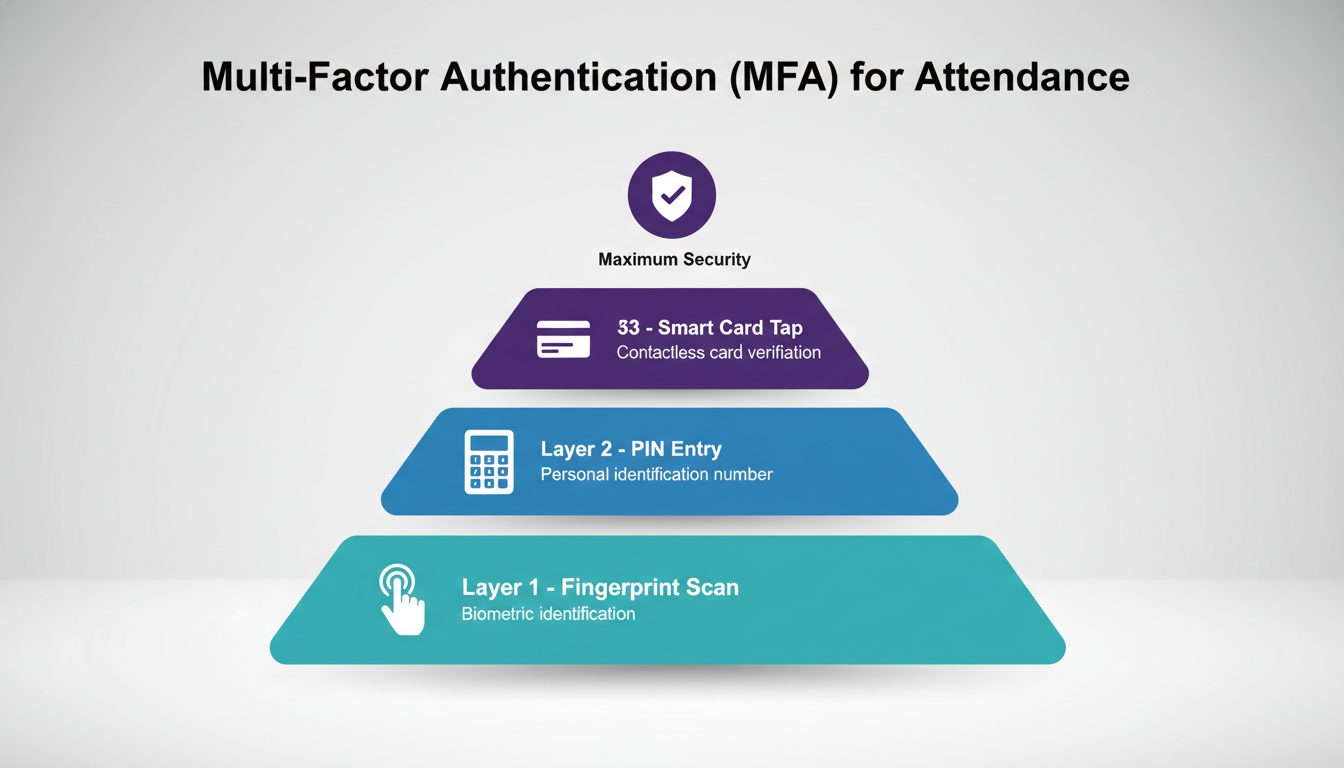
Banks and government offices already run this pattern. Biometric plus PIN is the cheapest starting combination, since most devices already support both without new hardware.
What does liveness detection protect against?
Silicone fingerprints and printed face photos both exist and both are cheap to produce. Liveness detection checks for warmth, micro-movement, or depth before accepting a scan. If your device is more than a few years old, check whether a firmware update adds it before assuming you need new hardware.
What belongs on a maintenance schedule?
- Wipe the sensor daily with a dry microfibre cloth, before first use
- Never use alcohol or solvent on sensor glass
- Check for firmware updates monthly
- Recalibrate quarterly
- Inspect cables, ports, and power supply monthly, since voltage fluctuation causes failures that look like sensor faults
- Log every maintenance action with a date
- Full service by a trained technician twice a year
What do rejection logs tell you?
Almost everyone skips this step, and it is the one that catches problems early. Look for patterns. The same five employees failing repeatedly means bad enrollment templates. Failures clustered at 7 AM means lighting or cold hands. Failures on one device only means hardware. The log tells you which bucket you are in before the queue does.
What Should You Check First When a Device Fails?
Clean the sensor, retry with dry hands, try another finger, then check the enrollment score. Most problems resolve in under five minutes without touching the hardware.
1. Clean the sensor and retry
- Power off the device
- Wipe the sensor with a dry microfibre cloth
- Remove dust, oil, and smudges
- Power back on
- Have the employee dry their hands completely
- Retry with firm, flat pressure on the centre of the fingertip
2. Try another finger or another modality
If four fingers are enrolled, you have four chances. Ask for a different registered finger and a flatter angle. On a dual-mode device, switch to face. If only one finger was ever enrolled, you have just found the underlying problem, and it should be fixed at the end of the shift.
3. Check enrollment quality
- Open the admin panel and check the match score for the failing employee
- A score consistently below your device’s pass threshold points to a weak template rather than a bad scan
- Check the enrollment date, since templates captured years ago on hands that have since worn need refreshing
- Compare against a sample of employees who scan cleanly
- Schedule an immediate re-enrollment if the template is weak
4. Verify device health
- Run the built-in self-test
- Read the error log for codes
- Inspect the sensor for cracks or deep scratches
- Confirm a stable power supply
- Test the network or USB connection if data is not syncing
- Restart fully and retest
- Escalate to your vendor if error codes persist
Where Should You Start?
Enroll more fingers, document one fallback, and read last month’s rejection log. If you do only three things after reading this, do these.
- Enroll a second and third finger for every employee. Free, one afternoon of work, and NIST’s testing shows it cutting miss rates by roughly seven times.
- Pick one fallback and document it. Match it to your floor conditions, not to what a vendor is selling.
- Pull last month’s rejection log. The pattern in it tells you whether you have an environment problem, a biology problem, or a hardware problem, before you spend anything.
FAQs
What does a biometric error mean?
A biometric error means the system could not confirm your identity from your biological sample even though you are enrolled. It covers four events: failure to capture, where the sensor gets no usable image; failure to enroll, where you cannot be registered at all; false rejection, where a genuine user is refused; and false acceptance, where the wrong person is matched.
What are the main types of biometric failure?
Failure to capture, failure to enroll, false rejection, and false acceptance. Most day-to-day complaints about a biometric machine not working are false rejections, caused by a dirty sensor, wet or worn skin, poor lighting, or a weak enrollment template.
Why does the biometric machine not read my fingerprint?
The usual causes in order of frequency: a dirty sensor, wet or excessively dry hands, worn fingertips from manual work, a fresh cut, and a poor-quality enrollment template. Clean the sensor, dry your hands, retry with firm flat pressure, then try a different registered finger.
What should I do if my fingerprint is not recognised and I have no admin access?
Dry your hands, press flat and firm at the centre of the fingertip, and try another registered finger. Stop after three attempts. Then tell your supervisor before you start work, take a timestamped photo of the failure screen, and ask for the correction to be logged the same day. If it has happened three times, ask HR to re-enroll you with four fingers.
How often do biometric systems fail?
NIST measured a 1.9 percent miss rate for a single index finger in controlled testing, dropping to 0.27 percent with two fingers enrolled. Real workplaces run higher because of dust, humidity, and worn skin. The World Bank puts fingerprint failure-to-capture at under 2 to 5 percent of a general population, with manual labourers well above that.
Is face recognition more reliable than fingerprint?
For manual-labour workforces, yes. Face capture failure sits near 0 percent where fingerprint capture failure runs 2 to 5 percent. But face recognition fails on backlighting, low light, and covered faces. It solves the worn-fingertip problem and introduces a lighting problem, which is why the two work best paired.
Why does my RFID attendance card work sometimes but not always?
Usually a cracked internal antenna from bending or a punched hole, or a reader mounted on metal, which cuts read range sharply. Test the card on a second reader. If it fails there too, replace the card. If it works, the problem is the reader or its mounting surface.
Why is my biometric attendance data not syncing?
The device recorded the punches but never delivered them to the server. Check the network or wifi connection at the device, the last successful sync timestamp, and whether device storage is full, since a full device stops writing new records. Restart the device and force a manual sync. If records appear after the sync, nothing was lost. If the device has been offline for weeks, its buffer may have overwritten the oldest punches.
Does attendance data get lost if the biometric device goes offline?
Usually not. Most attendance devices store punches locally and upload them when the connection returns, so a few hours or days offline causes no loss. The risk begins when the local buffer fills, because the device then either stops recording or overwrites the oldest entries. Check your device’s local storage capacity and how many days of punches it holds at your headcount, then set an alert for sync failures rather than discovering it at month end.
Why is the device missing punches for only some employees?
Selective missing punches point to enrollment quality rather than device or network faults. Those employees are scanning, getting rejected, and walking away without a recorded punch. Pull the rejection log and compare it against the missing entries. If the failed attempts are logged at the right times, their templates are weak and need re-enrollment. If no attempt is logged at all, they may be scanning at a device that is not syncing, or not scanning at all.
What should I do if the biometric device stops working on payroll day?
Do not troubleshoot with payroll waiting. Switch to your documented fallback, have supervisors record attendance manually with timestamps, and process payroll from the manual record plus whatever the device already uploaded. Export the device’s local log before restarting anything, because a restart on a full device can lose buffered punches. Diagnose the hardware after payroll is out. If payroll day exposed that you have no fallback, that is the actual finding.
How do you correct wrong in and out times in biometric attendance?
Use the admin panel’s manual adjustment, and record a reason and a timestamp against every change so the entry stays auditable. Common causes of wrong times are duplicate punches within a short window counted as separate events, an employee scanning out at a device set to record entries, and device clock drift against the server. Check device clock synchronisation first, because a device running minutes off will produce wrong times for everyone rather than for one person.
Should I buy a local or an imported attendance device?
Judge it on after-sales support over five years rather than on purchase price. Imported brands reach Bangladesh through resellers, so spare parts are ordered from abroad and support depends on whichever importer sold the unit. A supplier with local service infrastructure holds parts in country and can send an engineer to site. Ask where the nearest service centre is, what the written repair turnaround is, and whether spares are stocked locally.
How many fingers should each employee register?
Four is a good target: both index fingers plus both thumbs. Most devices store up to ten templates. For manual workers, register thumbs first, since they wear more slowly than index fingers.
How often should biometric devices be maintained?
Daily sensor wipe, monthly firmware check and cable inspection, quarterly recalibration, and a professional service twice a year. Review rejection logs weekly so patterns surface before they become queues.